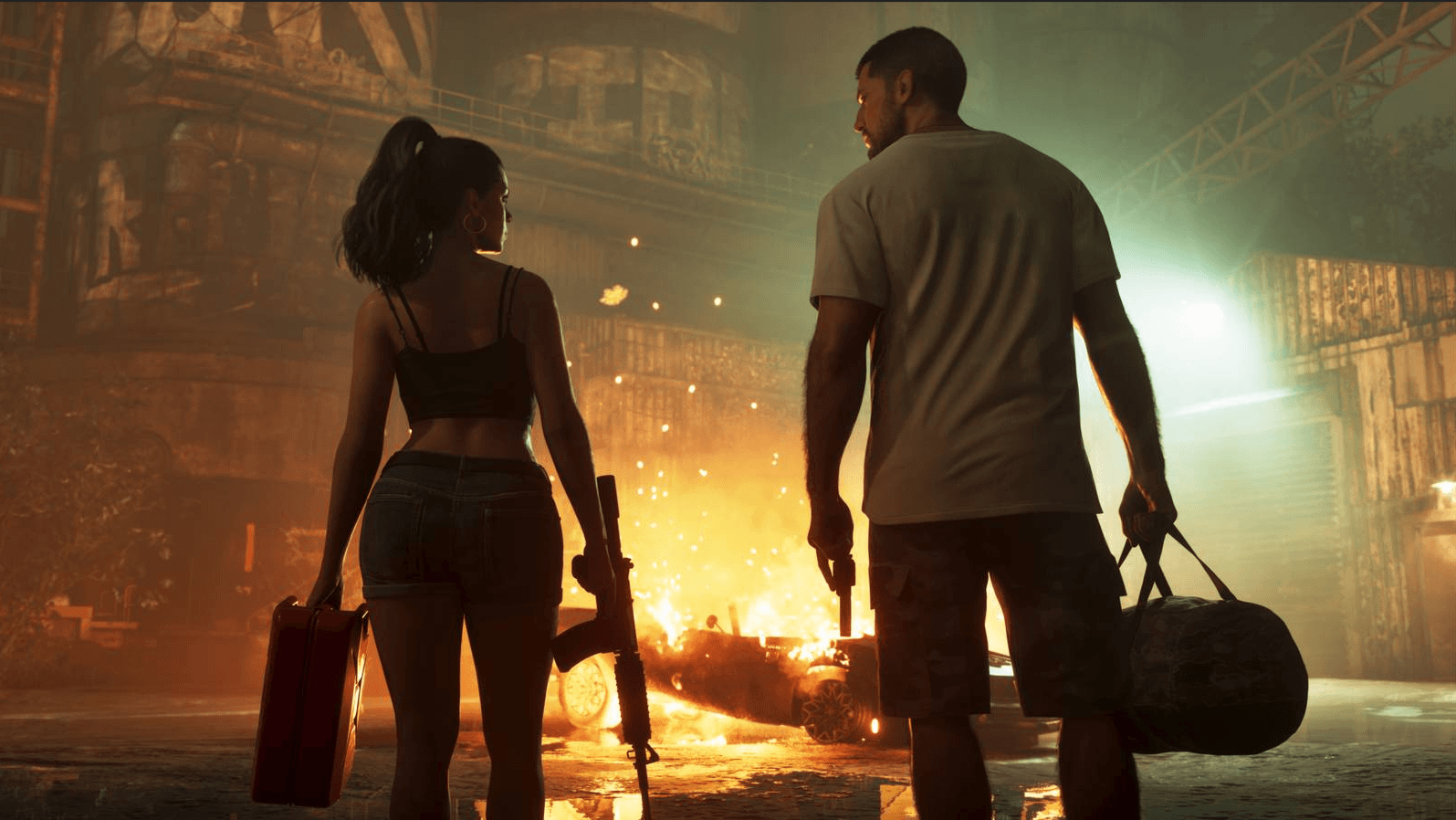
One small gripe is that its HDR calibration settings are causing some problems and confusion, with many people complaining of a flatter-than-expected look with lower brightness than advertised.
Fortunately, HDTVTest’s Vincent Teoh has already gotten to the bottom of this issue, and in his latest video he explains why this is so. According to Vincent, GTA 6’s HDR rendering isn’t actually broken, but the problem is that the calibration procedure is misleading because the test patterns don’t match what happens inside the actual game. Moreover, the game seems to ignore the console-level calibration settings on the Xbox Series X and PlayStation 5 consoles, instead relying entirely on its own, in-game sliders – Max Brightness, Black Levels and Paper White.
Vincent tested things out on his ridiculously expensive Sony BVM-HX3110 mastering monitor and also a Canon reference monitor, and found that the three main settings impact each other in some unexpected ways. For instance, when Max Brightness is set to 1,000 nits, it measures this accurately on the test pattern. However, the sun in the game only reaches around 600 nits when Paper White is set below the default of 50. So in order to get 1,000 nits in actual gameplay, users have to crank the Max Brightness all the way up to 2,000.
There’s also a problem with the Black Levels sensitivity. When Paper White is set to 50 or above, adjusting the Black Level generally ensures the black floor stays at zero nits. But reducing Paper White below 50 makes the Black Level even more sensitive, raising the black floor as it’s increased above zero. However, if you leave Black Levels at zero, this can result in a loss of detail in shadowy areas and block crush in scenes such as the cutscene where Jason first meets Lucia.
Another issue is the over-brightened midtones in some scenes, which occurs when Paper White is left at the default setting of 50. According to Vincent, this has the effect of overbrightening certain game sequences and compressing the dynamic range, which makes some scenes look too flat. While the ITU-R BT.2408 standard indicates a reference white of around 203 nits for dark-room viewing, Paper White at 50 measured around 350 nits on the UI and on fade-to-white elements.
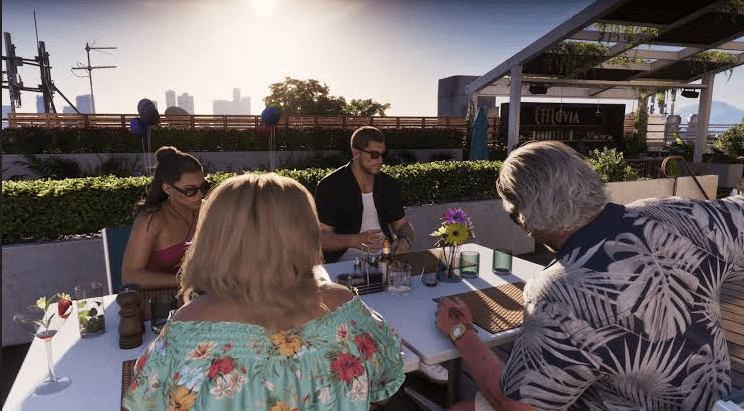
Fortunately, Vincent has come up with a workaround. In the video, he said that fine-tuning requires iterative testing, such as by dialing in Paper White, adjusting the Max Brightness for in-game peak luminance by using the nighttime calibration spotlight as a reference for sun brightness, and then readjusting Paper White after.
If you have a display that’s capable of 1,000 nits brightness or higher, this is the recommended baseline:
1: Switch off the lights in the room so your eyes can adapt to the darkness. This will make sure the absolute HDR10 PQ standard matches your viewing environment, Vincent said.
2: Set the Max Brightness at 2,000 nits.
3: Set Black Levels at zero to begin with, then hide the UI and allow your eyes to dark-adapt.
4: Now, gradually increase the Black Levels setting until the checkerboard background starts to become discernable. In Vincent’s case, this occurred at around 20 on the Sony BVM-HX3110, but it will differ from display to display.
5: Next, set Paper White at 35 as a starting point to avoid the over-brightened midtones, and then reduce the 350-nit default output to a more natural level.
6: Finally, verify and fine-tune during gameplay, carefully checking cutscenes, the UI, fade-to-white brightness and the highlight levels, and adjust these iteratively as needed.
As Vincent explains, the optimal levels for each setting will invariably differ depending on the exact display you’re using to play GTA 6. It’s not a perfect solution by any means, but it’s as good as it’s going to get until Rockstar provides a proper fix.
Here's Vincent's full video with the complete rundown on what to do:
